How to compress photos for email, websites and upload limits (offline, Mac, Windows, Linux)
Make photos smaller, resize them, convert to JPG or WebP and fit a size limit like 500 KB — a whole folder at once, without uploading them anywhere.
Free · no account · 3 free uses of every tool · also for Mac (Intel), Windows, Linux
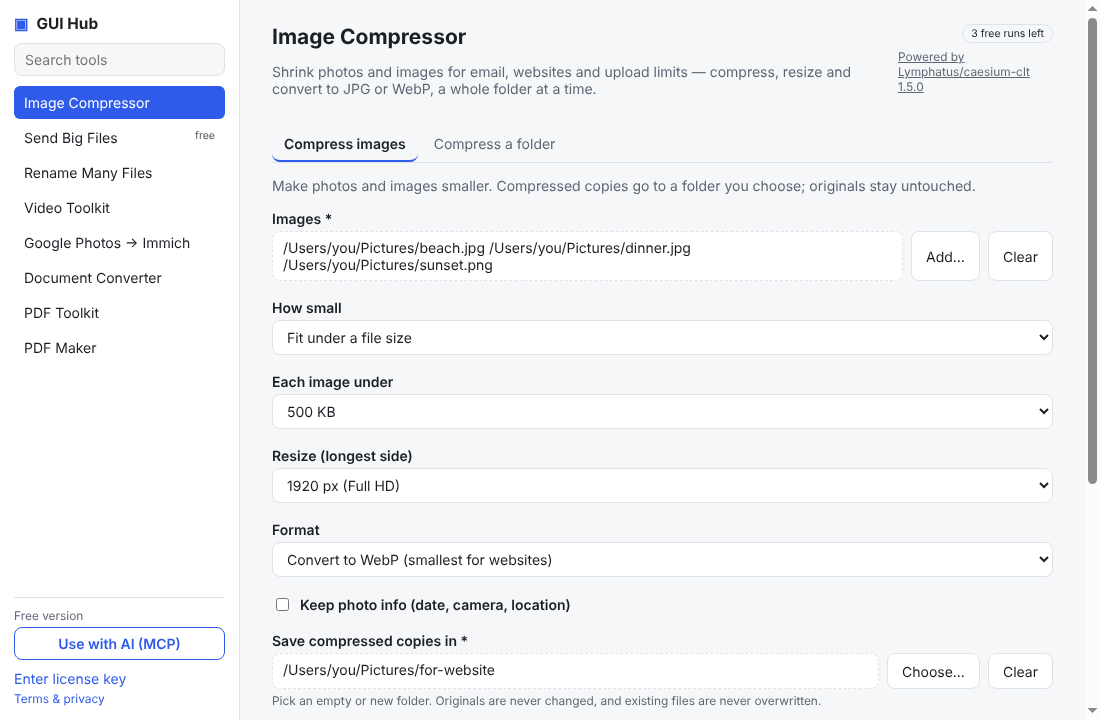
Phone photos are 3–8 MB each. Email bounces them, web forms reject them and websites load slowly. Online compressors work, but you upload every picture to someone else’s server, often one at a time. These steps do it on your own computer, for a whole folder at once, and never touch your originals.
Compress a batch of photos
- Open GUI Hub and choose Image Compressor.
- On Compress images, add your photos (or use Compress a folder).
- Leave Quality on Good — recommended. Most photos shrink by 60–80% with no visible difference.
- Pick an empty folder for the copies and press Compress.
Fit an upload limit (e.g. “max 500 KB”)
Set How small to Fit under a file size and choose the limit. Each image gets the best quality that still fits.
Resize for the web or email
Choose Resize → 1920 px for full-screen viewing or 1280 px for email and websites. Small images are never enlarged.
Convert to WebP or JPG
Set Format to WebP for the smallest files on websites, or JPG to make PNG screenshots and photos open everywhere.
Ask your AI to do it
With GUI Hub connected to Claude or Cursor, just say: “Resize the photos in ~/Pictures/trip to 1920 px and keep each under 500 KB.” It calls the caesium_folder tool and tells you where the copies are.
What powers it
The compression is done by Caesium (Apache-2.0), an open-source image compressor. GUI Hub downloads the official release and verifies it before first use.
Try it now
Free download — use it 3 times free. $9 once unlocks everything. Prefer to ask your AI? GUI Hub also works as an MCP server for Claude, Cursor and others.